This help page is supposed to explain how to post content for the BAR Morning Shot. We respectfully request that all those authorized to post will review it, and please let me know whether the explanations here make sense. If they don't, I'll write new ones, until I get them right.
I also need Morning Shot Editors to tell me if there are other topics on which I need to create help files.
If everything else works backstage the way it ought to, when you create and save a new Morning Shot, it should replace the old one in the upper right hand corner of the site, not always immediately, but within a couple minutes. If the update does not occur quickly enough, let me know and I will enable permissions for the Morning Shot Editor to force the update process.
Email is sure, but it's not always fast because I am not always at a computer. But all the Morning Shot editors should have my phone number. Please do not hesitate to call me for any sort of technical support issues on the site. Many times I can resolve an issue even when I am not at the keyboard. In some other cases I can walk you through a solution, or I can call on someone else to help if I am not available. So if you need help, do please call.
-
The first step is to login with your user name and password. The present BAR site has its user login box in the left column a little ways down the page. In the illustration below I'm logging in with the name “bdixon”.

-
You know you're logged in as a Morning Shot editor when you see the black bar at the top of the page. The administrative menu bar shows the administrative functions available to you.Tap “Content Management” and there should be a drop-down that includes “Create Content.” Leave your mouse there for a instant, and the choices “blog entry” and “image” should appear. Choose “blog entry,” as shown in the illustration below.

-
The next page you see should look like illustration 03 below, on the backstage portion of the site. In the “title” area type the title of the day's morning shot. In the “vocabularies” boxes type any keywords that apply to the day's morning shot. In the example, I typed “AFRICOM” in one of the lines, and had begun typing “single payer” in another. If hints appear below what you're typing, and any of those apply, choose them. It means that other BAR articles have used those same tags.

-
Further down the page, you see one of the “Vocabularies” labeled “other”. Be sure to put “ba morning shot” – without the quotes of course, on this line. If you don't put it in there, the system will not know what your entry is and will not handle it appropriately. The illustration below shows the entry on the proper line. Please note that what you enter here IS case sensitive, so even an extra space introduced anyplace other than at the end will make the difference between your entry showing up in the proper place and not.

-
Still further down, you will see the “Body” section of the “Create Blog Entry” page. If, the “Body” section is a plain, unadorned box without the menus or icons, you can skip this step and go directly to #6. But if the “Body” section looks like the illustration below, with its own menu and icons, you cannot drop the embed code into it, as that code will not be handled appropriately. Look just below the “Body” section and click on “Switch to plain text format“.

-
Now the “Body” box should look like the illustration below, ready for you to paste in the YouTube embed code. This is where you paste in the embed code, followed by a couple of hard returns at the very end. Since the Morning Shot is going to be displayed at the top of the right column on our page starting Friday, August 13, it's important that you proportionately adjust the width and height settings in the embed code. So adjust the WIDTH to 300 pixels, and the height accordingly.

-
Now place your cursor at the end of the stuff you pasted in, and click once. Then look for a button just over the “Body” box that says “Split summary at cursor.” Click that button and your page should now look like the illustration below.

-
Finally, you must click on the “Input format” line below the “Body” box, and choose “full html” as in the illustration below. That's it. Now save the piece, and in a moment, your video should appear in a box at the upper right portion of BAR's entry page. That should do it.

Again, I am available for any kind of technical support and problem solving on the site. The surest and fastest way to get me is via my cell phone, 404-797-2087, or my home phone, 770-592-7295.

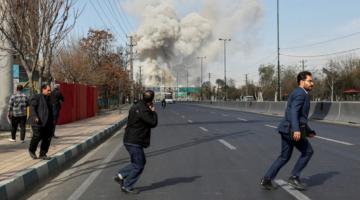 The demand to call out alleged crimes in Iran or Cuba while those countries face annihilation from the U.S. and Israel is a refusal to see those people as human beings worthy of protection.
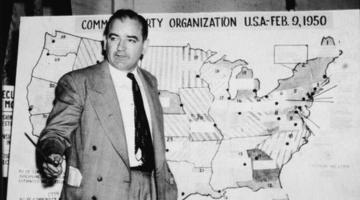 Red Scares are a recurring feature of the U.S. political tradition aimed at criminalizing anticapitalist politics through accusations of foreign infiltration and conspiracy. The NSPM-7 and the report…
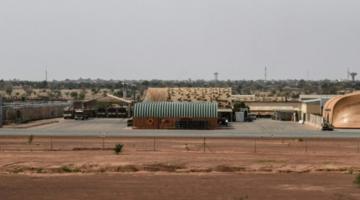 For several years, three landlocked West African states have undergone political transformations designed to turn the page on French neo-colonialism.
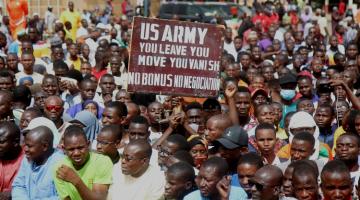 The U.S. is considering drone strikes and sanctions against the Alliance of Sahel States under the guise of counterterrorism, but the real objective is to regain neo-colonial control over African…
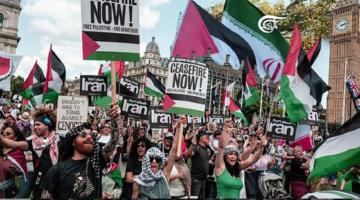 Western pro-Palestinian activism isolates Palestine from its regional allies, depoliticizing its struggle and reinforcing colonial divisions.